Chapter 2 · Products
Autofill fields
Autofill related Google Forms fields from a Google Sheet row. When a respondent picks a value, the matching fields fill in automatically. Editable, read-only, or hidden.
Quick Answer
How do I autofill Google Forms fields from a Google Sheet?
Use Formfacade's Sheets Lookup and pick 'Autofill fields from Google Sheets'. Connect your form and your sheet, then at the Configure step describe the autofill, e.g. 'autofill Full Name, Department, Manager Email from Sheet1 when Employee ID is entered'. Formfacade queries the sheet in real time and populates the matching fields from the same row. Autofilled fields can be editable, read-only, or hidden.
Autofill goes a step beyond a populated dropdown: when a respondent selects a value, related fields fill in automatically from the same row of your sheet. It saves typing, prevents mistakes, and keeps submitted data consistent with your source of truth.
First, the shared setup
Every Lookup task starts the same way: Try it free, connect your form, connect your sheet. If you haven't done that yet, see Set it up on the Sheets Lookup overview. This guide picks up at the Configure step.
Use case
On an IT support form, a respondent picks their Employee ID and the form fills in their Full Name, Department, and Manager Email from the employee directory, so every ticket is tagged to the right person and routed to the right manager.
It uses the same directory sheet as the dropdown, this time pulling the Full Name, Department, and Manager Email columns (B–D) from the row that matches the selected Employee ID.
Set it up
Pick Autofill fields from Google Sheets at the start. The Connect form screen reads "add lookups."
After connecting your form and sheet, the Configure step pre-fills an autofill instruction, for example "Connect to Google Sheets: IT_Support_Ticketing_Directory. Autofill Full Name, Department, Manager Email from Sheet1 when Employee ID is entered." Review it, tweak if needed, and click Proceed.
Formfacade confirms what it built: the Employee ID dropdown lists every ID, and picking one autofills the other fields from that row. Other questions (like the ticket description) are left unchanged, and it may switch the looked-up question to short-answer so the value records on submission.
The result
On the published form, selecting EMP-102 instantly fills Full Name (Bob Johnson), Department (Sales), and Manager Email (manager.sales@example.com) from that row. The respondent only picks their ID and adds their issue.
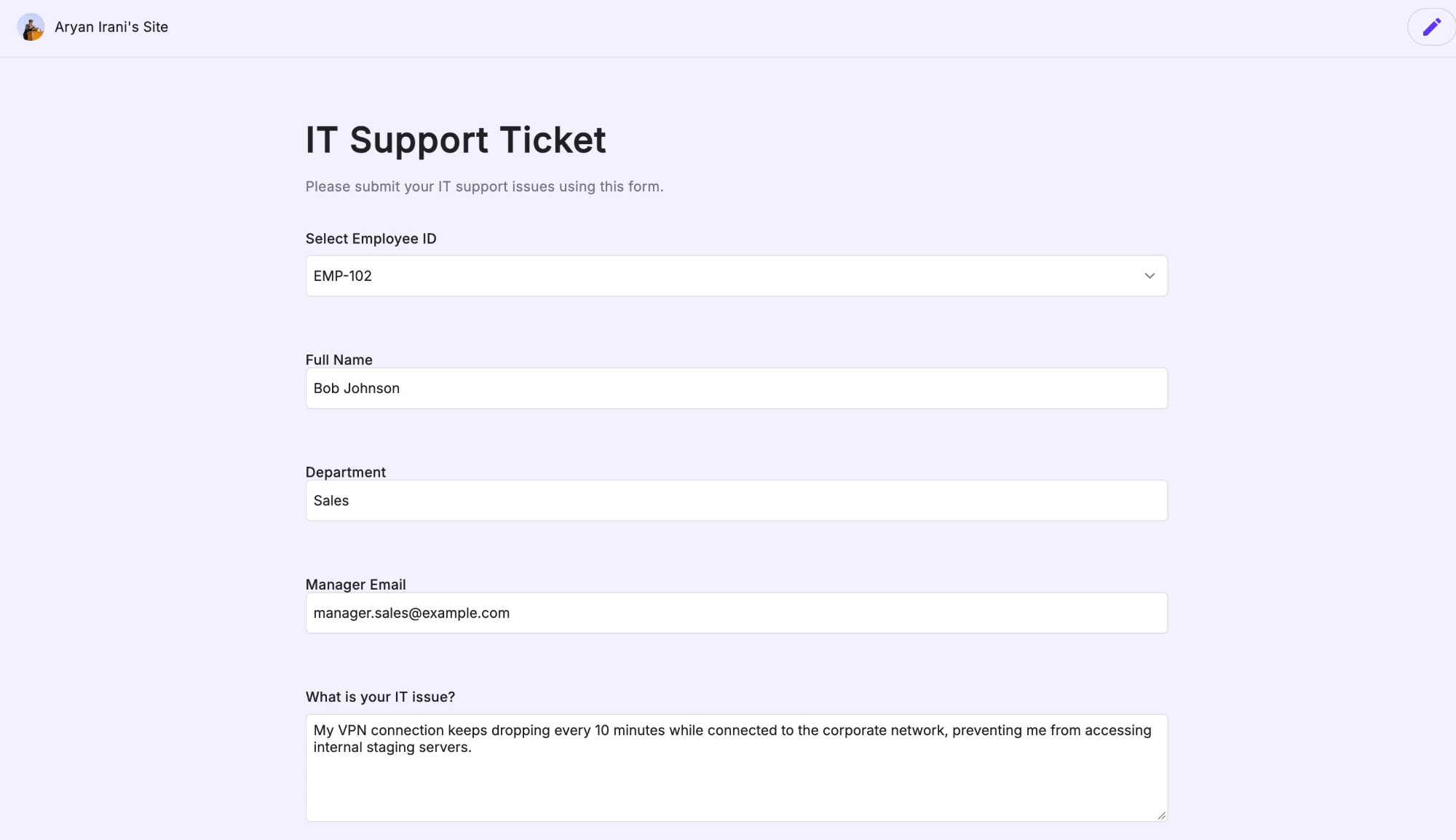
Each field stays editable by default, but you can mark autofilled fields read-only (respondents can't change them) or hidden (they don't see them). You can even autofill different fields from different connected sheets.
Good to know
| Behavior | Detail |
|---|---|
| Trigger | Respondent selects or enters a value; related fields fill from the same row |
| Field visibility | Autofilled fields can be editable, read-only, or hidden |
| Recording | Looked-up questions may switch to short-answer so the value saves on submit |
| Multiple sheets | Different fields can autofill from different connected sheets |
| Sync | Every 30 minutes, or on every form submission; read-only |
Next steps
- Just need to fill a dropdown's options? See Populate a Dropdown.
- Want the next dropdown to depend on an earlier answer? See Conditional Dropdowns.
- Back to the Sheets Lookup overview.