Preview & Customize
Customize your form's look and feel in the Formfacade Preview tab — choose a Minimal or Colorful theme, set colors, background, and fonts, add your branding, and preview live before publishing.
Quick Answer
How do I customize how my Formfacade form looks?
Open the Preview tab. Pick a base theme — Minimal or Colorful — then choose a color preset, set your primary and background colors, add a background image or make it transparent, and set fonts and size. Use the Page tab to add a logo, business name, and footer. Preview on desktop or mobile, then click Apply to save.
Once your form is structured in Edit, the Preview tab is where you customize its look and feel — one of Formfacade's core selling points. Choose a theme, set your colors and fonts, add your branding, and see the result live before you publish.
Entering Preview & the page-title prompt
When you open Preview, Formfacade first asks whether to configure your page title:
- Yes → opens the Page tab to set your branding (logo, business name, footer, language).
- No → stays on the Theme tab so you can start styling right away.

The right panel has two tabs: Theme (the form's visual style) and Page (site-level branding).
Preview modes
At any time you can preview the form as it will really appear:
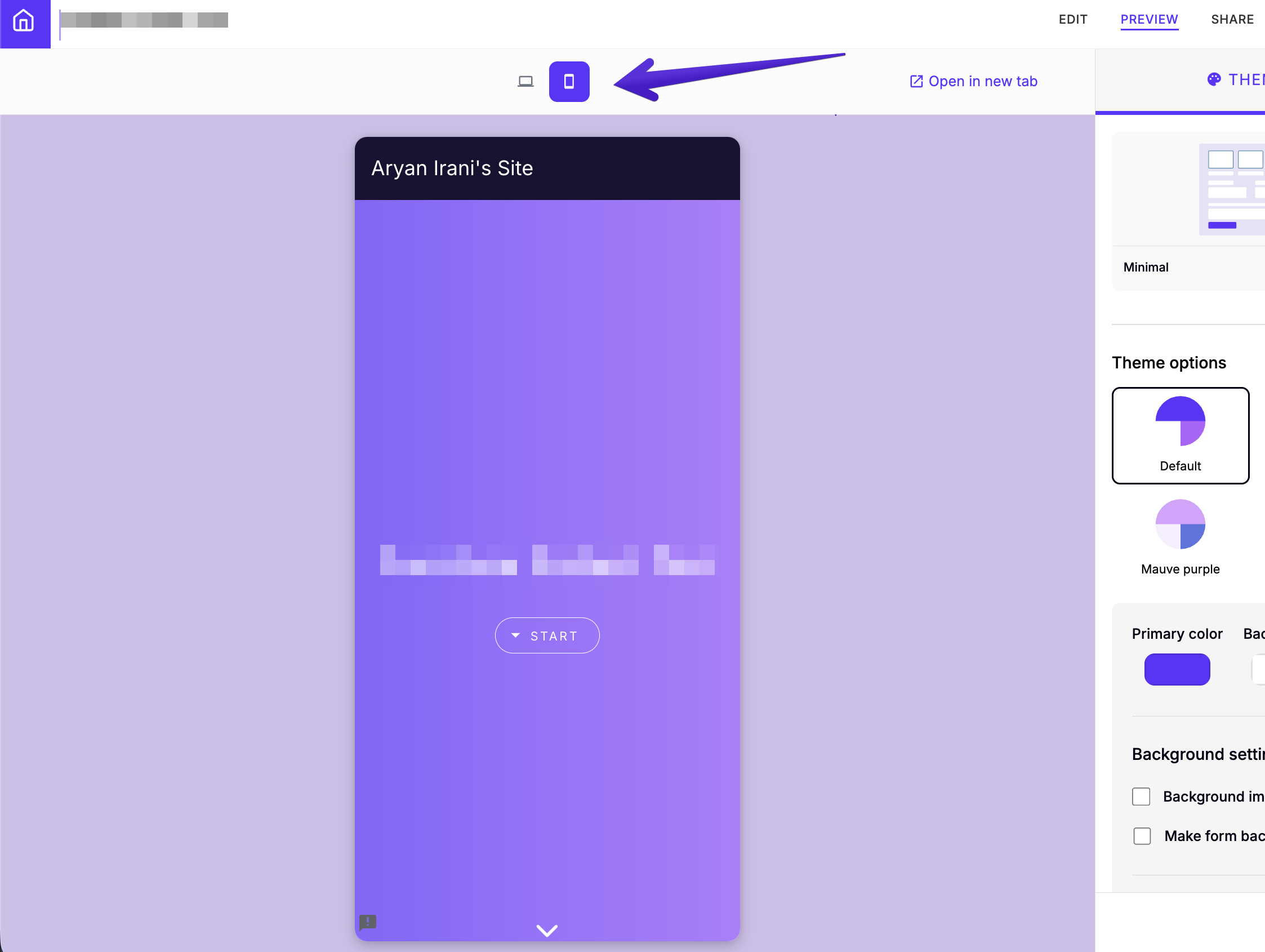
- Desktop / Mobile — toggle between the two device widths.
- Open in new tab — see the full, live form on its own.
Theme: Minimal vs Colorful
The Theme tab starts with two base themes. Both expose the same controls — presets, colors, background, and typography — they just start from a different look:
| Minimal | Colorful | |
|---|---|---|
| Look | Clean, light, understated | Bold — a colored header band and richer palettes |
| Best for | Blending into an existing site | Making the form a branded centerpiece |
| Presets | Custom, Default, Blossom pink, Celadon green, Sky blue, Forest green, Persian indigo | Default, Blossom pink, Celadon green, Sky blue, Mauve purple, Persian indigo, Indigo dark, Yale blue |
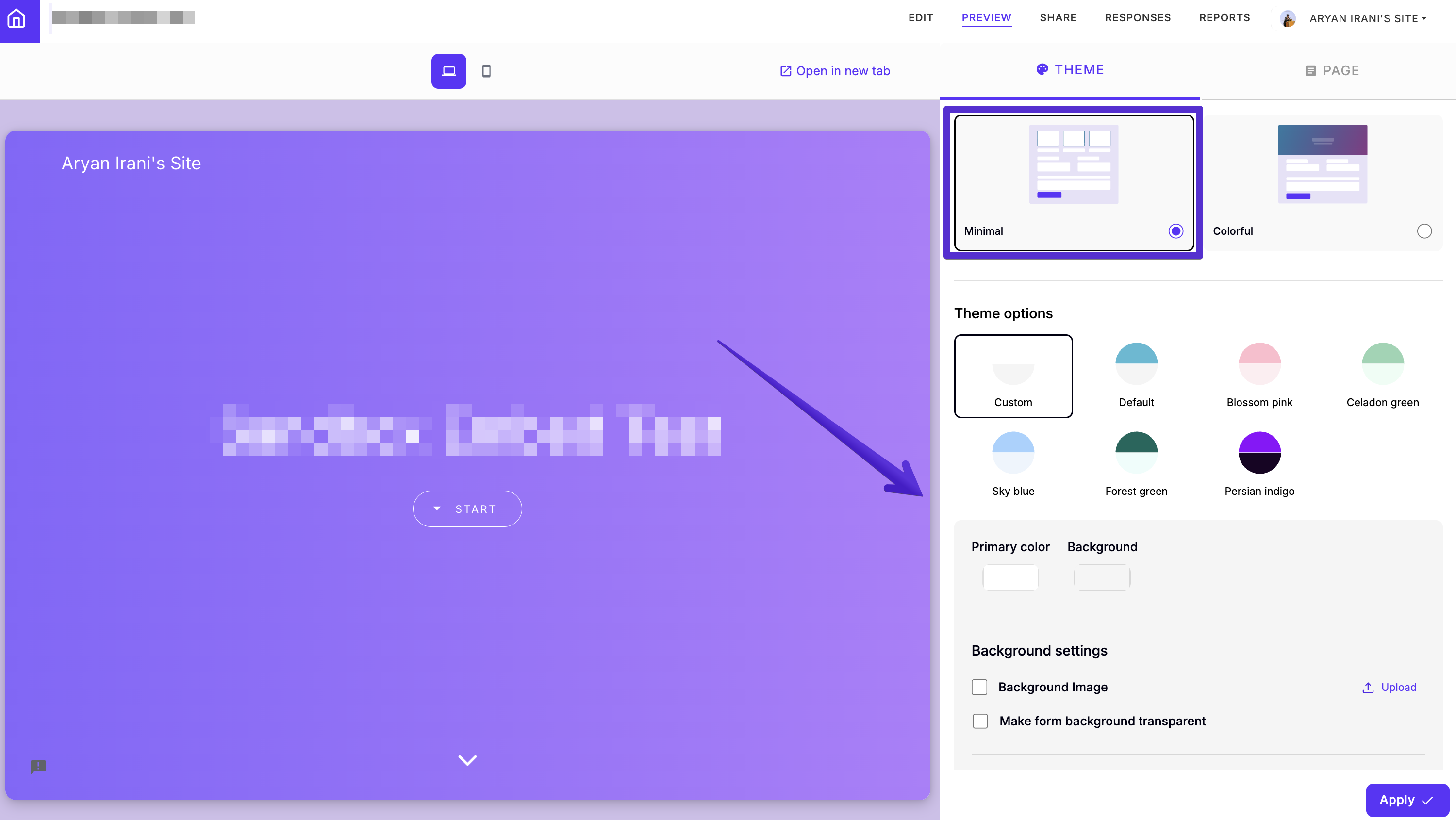
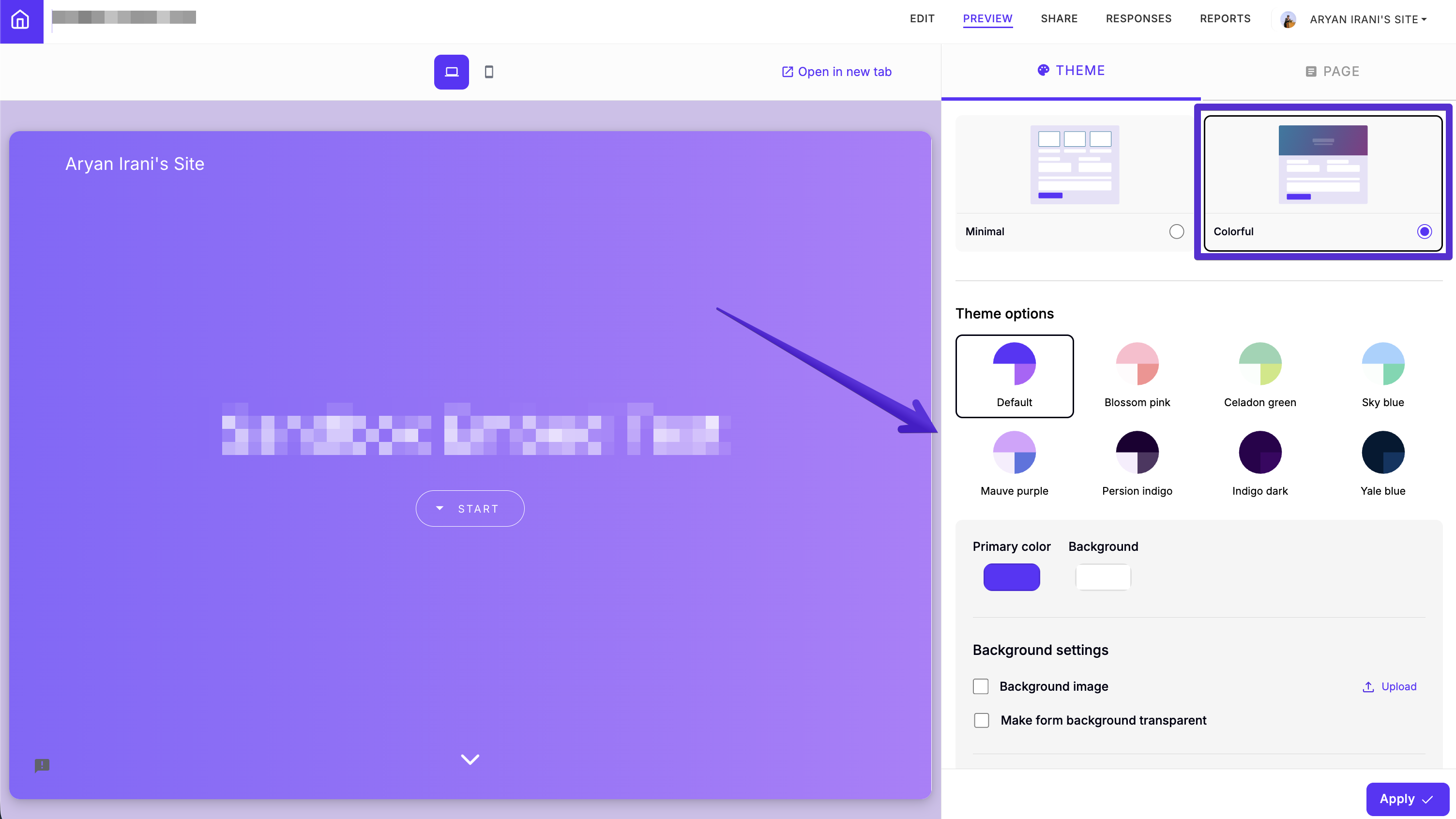
Whichever base you pick, the controls below work the same way.
Theme options (presets)
Pick a ready-made palette, or choose Custom to define your own. Colorful adds several deeper options (Mauve purple, Indigo dark, Yale blue) for a more vivid look.
Colors
Set the Primary color (buttons, accents) and the Background. Match these to your brand's palette.
Background settings
- Background image — upload your own image behind the form.
- Make form background transparent — let the form blend into the page or site it's embedded on.
Typography settings
Choose separate fonts for Headings and Paragraph text, and set the overall Font size with the slider (Smaller → Larger).
Page (branding)
The Page tab sets your brand details, shown around the form:
| Field | What it sets |
|---|---|
| Logo | Upload a logo (PNG, JPG, or WebP) |
| Business name | Your name as it appears in branding |
| Footer | Footer text, e.g. copyright info |
| Language | The form's display language |

Apply your changes
Always click Apply
Whatever you change — theme, colors, background, fonts, or branding — you must click Apply to save it to your form. Nothing takes effect until you do.
Next steps
- Share or embed your styled form from Share Your Form.
- Need finer control than the theme options allow? Add your own CSS under Advanced settings → Custom CSS in Edit.