Connect with AI
Connect a Google Sheet to your Google Form by describing what you want in plain English — AI sets up the lookup, autofill, or dropdown for you.
Quick Answer
How do I connect Google Sheets to a Google Form with AI?
Use Formfacade's Lookup Sheets and pick 'Connect Google Sheets to your form with AI'. Paste your form, pick your sheet, then describe what you want in plain English — for example 'when the respondent enters their Order ID, look up that row and fill in the Customer, Status, and Expected Delivery'. It sets up the lookup for you. It's the same engine behind the dropdown, autofill, and conditional options, for setups that don't fit neatly into one of those.
This is the most open-ended Lookup option: paste your form, pick your sheet, then tell the AI what you want in plain English and it wires up the connection. It's the same engine behind the other three tasks — reach for it when your setup doesn't fit neatly into "dropdown", "autofill", or "conditional".
First, the shared setup
Every Lookup task starts the same way — Try it free, connect your form, connect your sheet. If you haven't done that yet, see Set it up on the Lookup Sheets overview. This guide picks up at the Configure step.
Use case
An Order Status Check form lets a customer type their Order ID and see their order's Customer, Status, and Expected Delivery — looked up live from an orders sheet. The input is a value the customer types (not a dropdown of known options), and the form returns several fields from the matching row. That's a lookup you describe in words rather than pick from a fixed option.

Set it up
Pick Connect Google Sheets to your form with AI at the start — the Connect form screen invites you to tell the AI what you want in your own words.

After connecting your form and sheet, describe the lookup at the Configure step in plain English — for example "When the respondent enters their Order ID, look up that row and fill in the Customer, Status, and Expected Delivery fields. If the Order ID is not found in the sheet, show an error." Review it and click Proceed.

The result
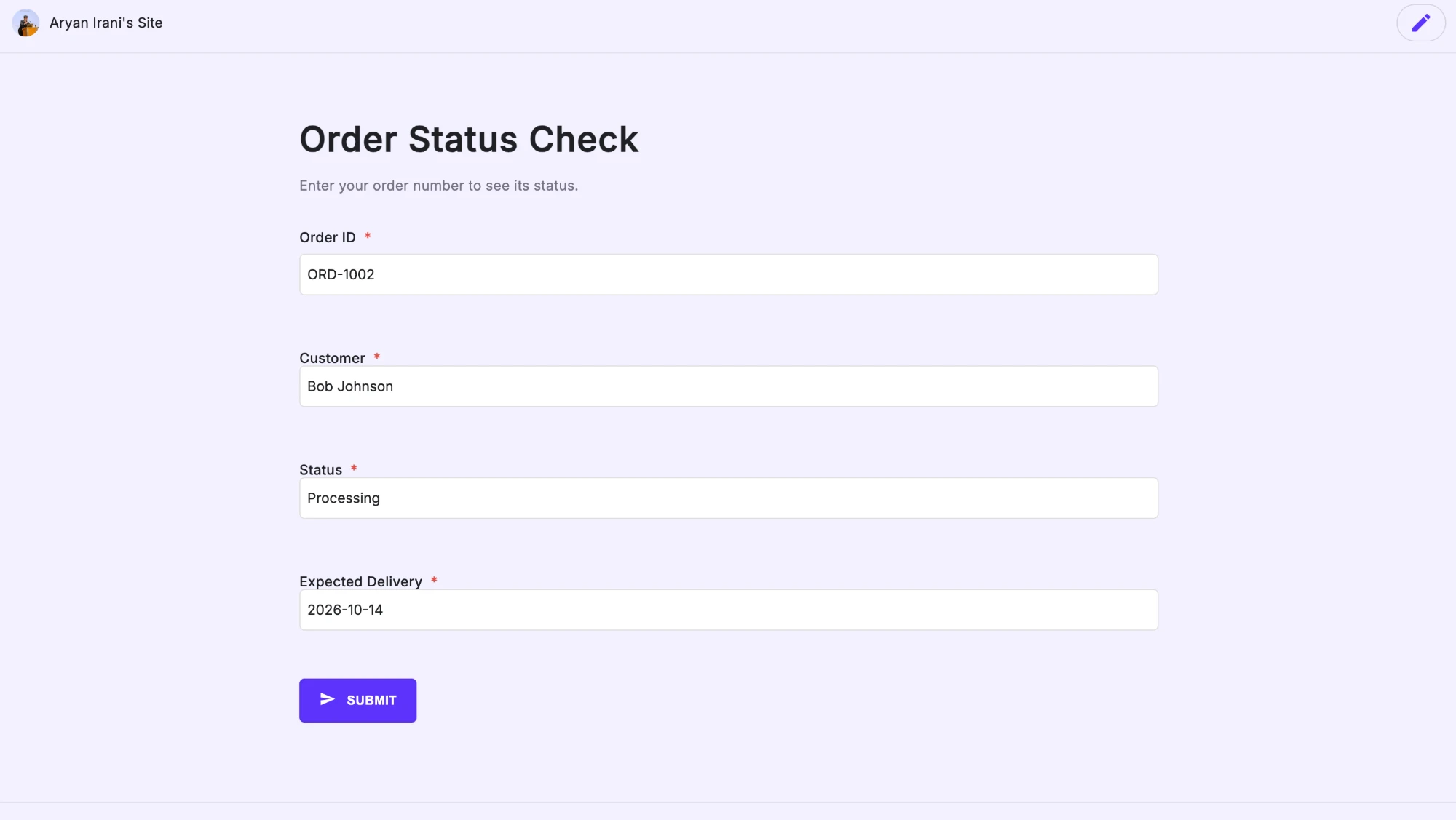
On the live form, typing ORD-1002 instantly fills Customer (Bob Johnson), Status (Processing), and Expected Delivery (2026-10-14) from the matching row — the customer only enters their order number.
How unmatched values are handled
In this build, the AI chose to leave the looked-up fields blank when an Order ID isn't found (the respondent can still submit). Because the behavior is driven by your instruction, describe how you want unmatched entries handled — for example leaving the fields blank, or blocking submission — and review the AI's summary before you publish.
Good to know
| Behavior | Detail |
|---|---|
| Input | A value the respondent types (not limited to dropdown options) |
| Returns | One or more fields from the matching row |
| No match | Handled per your instruction (e.g. fields stay blank) — review the AI's summary |
| When to use | Lookups that don't fit "dropdown", "autofill", or "conditional" |
| Sync | Every 30 minutes, or on every form submission; read-only |
Next steps
- Know exactly what you need? Jump straight to Populate a Dropdown, Autofill Fields, or Conditional Dropdowns.
- Back to the Lookup Sheets overview.