Populate a Dropdown
Fill a Google Forms dropdown's options from a Google Sheet column — deduplicated, sorted, or filtered, and always in sync. No code.
Quick Answer
How do I fill a Google Forms dropdown from a Google Sheet?
Use Formfacade's Lookup Sheets and pick 'Populate a dropdown from Google Sheets'. Connect your form and your sheet, then describe which column should feed the dropdown — for example 'populate the Employee ID dropdown from the directory sheet'. Options can be deduplicated, sorted, or filtered, and they stay in sync every 30 minutes or on each submission. Your sheet is read-only.
This is the simplest Lookup task: it fills a dropdown's options from a column in your Google Sheet — and nothing else. Add a row to the sheet and the new option appears in the form automatically, with no manual editing.
First, the shared setup
Every Lookup task starts the same way — Try it free, connect your form, connect your sheet. If you haven't done that yet, see Set it up on the Lookup Sheets overview. This guide picks up at the Configure step.
Use case
An IT support form needs a Select Employee ID dropdown that always lists the current employee IDs from your HR directory — without re-typing them into the form every time someone joins or leaves.
The directory lives in a Google Sheet. The Employee ID column (A) is what feeds the dropdown; the other columns are there for autofill.

Describe the dropdown
At the Configure step, describe which column feeds the dropdown in plain English — e.g. "populate the Employee ID dropdown with the values from the directory sheet." Options can be deduplicated (unique values only), sorted, or filtered by a condition.

Click Proceed, and Formfacade confirms the dropdown is now populated with the distinct values from that column.

Click Preview your form to see the live dropdown, then Publish when it looks right.
The result
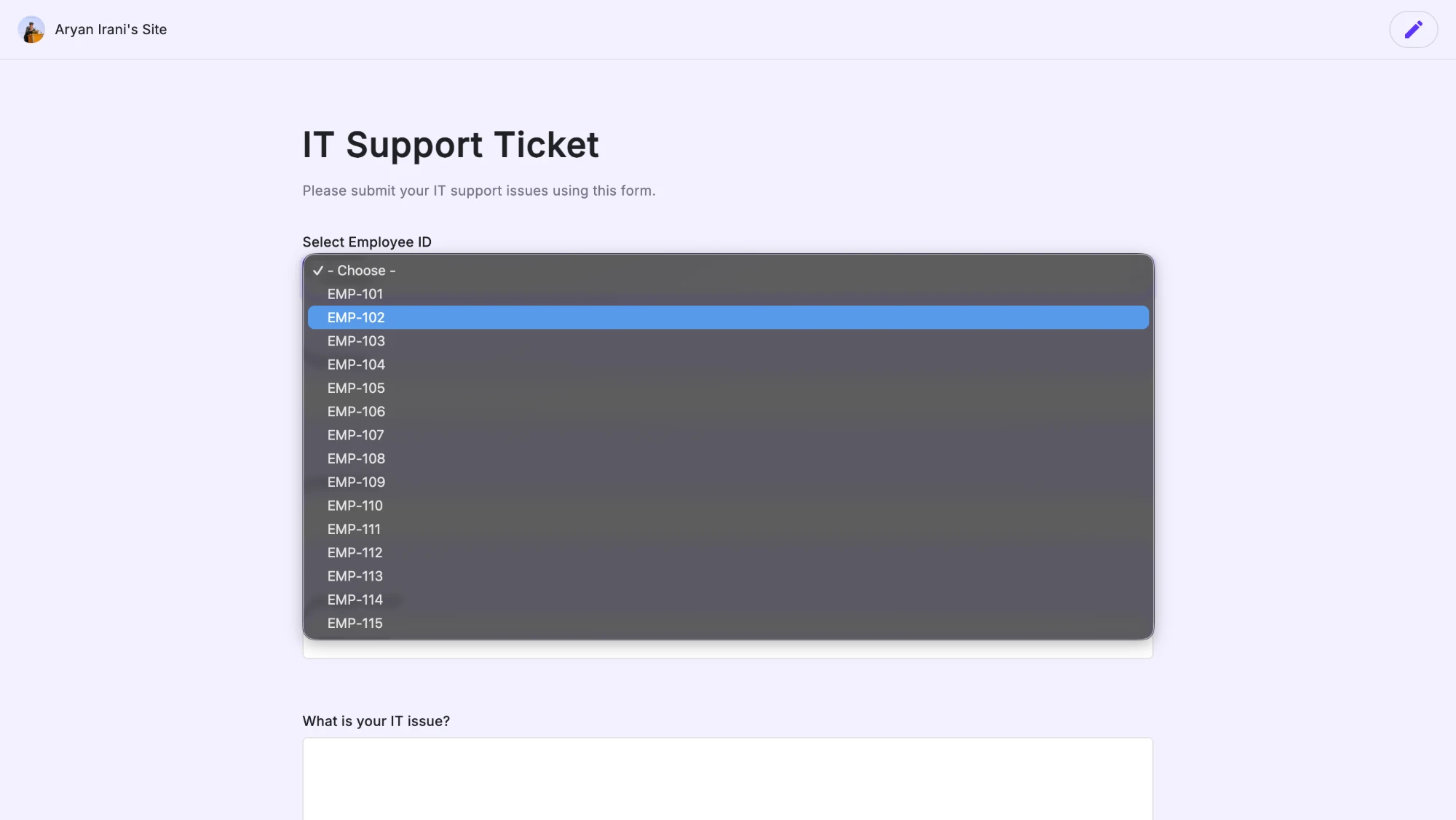
On the published form, the Select Employee ID dropdown lists every ID from the sheet — EMP-101 through EMP-115 — with no options typed into the form by hand. Add a row to the sheet and the new ID shows up on the next sync.
Good to know
| Behavior | Detail |
|---|---|
| What it controls | Only the dropdown's options — not autofill or dependencies |
| Cleanup | Deduplicate, sort, or filter the column's values |
| Sync | Every 30 minutes, or on every form submission |
| Direction | Read-only — your sheet is never modified |
Next steps
- Want selecting a value to fill other fields too? See Autofill Fields.
- Want the next dropdown to depend on this one? See Conditional Dropdowns.
- Back to the Lookup Sheets overview.